The web app
Run mini-tui in a browser: panes and windows of sessions, live sessions shared with the terminal, subagents, a model switcher, and phone support.
4 min read · Edit this page
The web app is the same agent as the terminal UI, in a browser. Sessions started in either front end land
in the same ~/.config/mini-tui/sessions.db, so /resume in the terminal sees what you started on the web,
and the reverse.
Run it
bun run web        # build the UI and serve everything on http://127.0.0.1:4317
bun run web:dev    # Vite dev server with hot reload
To reach it from another device, put it behind a reverse proxy with authentication. The API starts agents and stores provider keys, so it must never be exposed without a login in front of it.
Several sessions at once
The sidebar lists every session. A running session keeps streaming in the background, so switching to it shows a transcript that is already current.
Each open session streams over its own WebSocket (/api/sessions/:id/socket): a snapshot when it
connects, then small deltas holding only the events added since the last frame. The shared event stream only
carries what the sidebar needs (title, status, cost), so a busy session never spends another session's
bandwidth. The browser reconnects with jittered backoff and a heartbeat, retries at once when a phone wakes,
and asks for a fresh snapshot if a frame does not line up.
Panes and windows
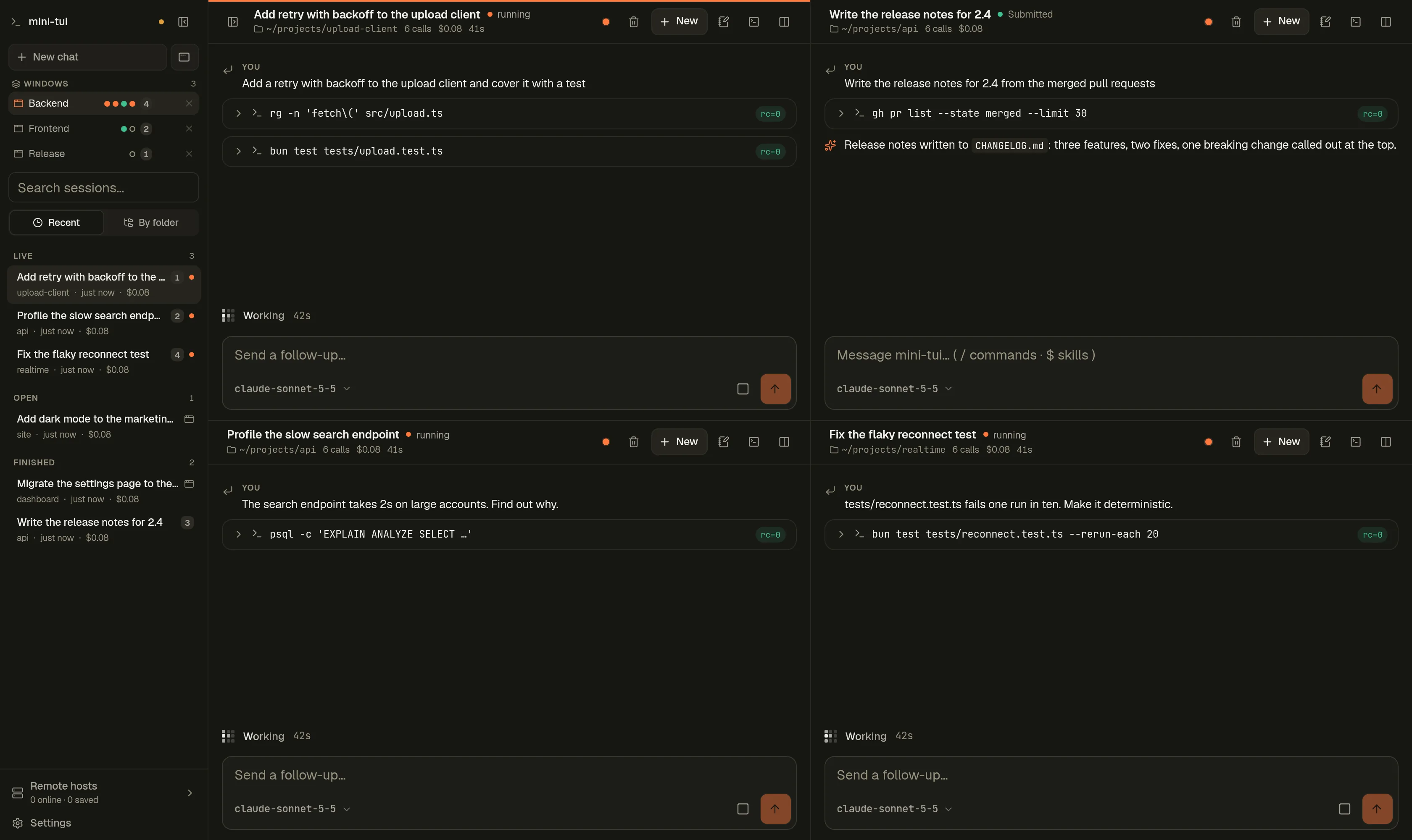
Split the screen into panes like tmux, each with its own session running at the same time: Ctrl+\
splits right and Ctrl+Shift+\ splits down. Then:
Alt+1toAlt+9andAlt+0jump to a pane, andAlt+Xcloses one (its session keeps running).- Drag a divider to resize two panes.
A window holds up to 12 panes, and you can have as many windows as you like. In the sidebar, each window row shows:
- one dot per pane: working, done (until you click that pane) or idle;
- a New window button;
- a pencil to rename it.
Any pane can move to another window, or to a new one, from its pane menu.
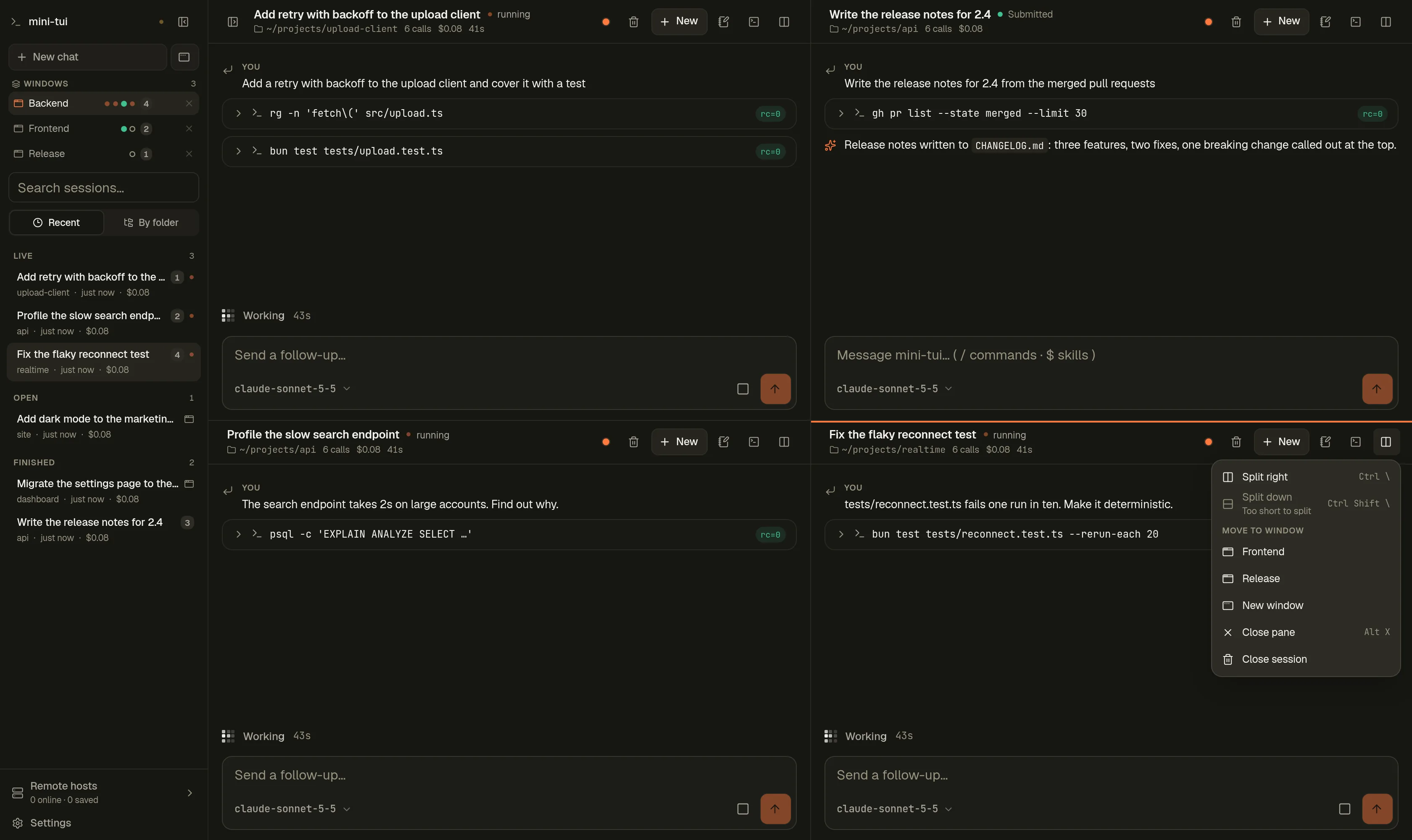 Clicking a session that a pane
already shows takes you to that pane, switching window if needed.
Clicking a session that a pane
already shows takes you to that pane, switching window if needed.
The same on every device
The windows, the panes, which session each pane shows, and the sidebar's view and pinned folders are kept
on the server (~/.config/mini-tui/web-workspace.json), not in the browser. A phone, a laptop and a second
tab all show the same thing, and a change on one appears on the others immediately.
What you are typing stays in its own tab, and so do the interface and text sizes and the theme.
A session running in a terminal
Open a session that a terminal UI is running right now and the web app follows that terminal's agent: its output streams in as it is written, and what you send from the browser goes to the same agent. Nothing forks, and no second agent starts. The terminal does the same for a session the browser runs. Closing either view leaves the agent running for the other one.
If a terminal continues a session while the web app holds it, the browser picks up the newer conversation before your next message.
Subagents
With the Rust agent, a session can start subagents to split its work. They appear in a strip under the
session's header, each with a status dot, its steps, its cost and its resident memory. Click one to follow it live in the pane
and message it like any session; its own strip links back to the parent. /subagents lists them and
/subagents <name> opens one. See Subagents for
how they work.
Notes and a terminal
Every pane has a side panel with two tabs:
- Notes, saved as you type and shared with every device;
- Terminal, a real shell in the session's folder, or over SSH for a remote session. It keeps running if you hide the panel or reload the page.
The terminal runs as the user the server runs as, so sudo follows that account's rules. Keep the server
behind authentication, or turn the terminal off with MINITUI_WEB_TERMINAL=0.
A new chat is a draft
/new (or New chat, or Ctrl/Cmd+K) shows an empty chat and creates nothing on the server. The first
message creates the session, on the model and host you picked. Abandoning a draft costs nothing.
The prompt bar
- One line when empty. It grows a line at a time up to five, then scrolls.
/at the start opens commands.$anywhere opens skills, matched by the same code as the terminal UI.- A pick becomes a chip above the field and is joined to your text only when you send. The field stays a plain textarea, so IME, autocorrect, paste and screen readers keep working.
- Enter sends, Shift+Enter adds a line.
Model switcher
Opens from the prompt bar. Searchable, grouped by provider and driven by the keyboard: type to filter, arrow keys to move, Enter to pick, Escape to close. A model that is not in the list can be typed.
Settings and providers
Appearance, command-output mode (shared with the terminal), skills, and providers. A key is tested with a real request before it is saved.
On a phone
44px touch targets, dialogs that rise as bottom sheets, safe-area insets, dvh layout and a keyboard-aware
prompt bar. Light and dark, six accent palettes.